
Tools to Troubleshooting & Account Management
Call 800-765-7772 to upgrade your Wisper service today!

Tools to Troubleshooting & Account Management
Step-by-Step Tutorials
Below are tutorials to help you test equipment and internet speeds to help determine and resolves internet issues.
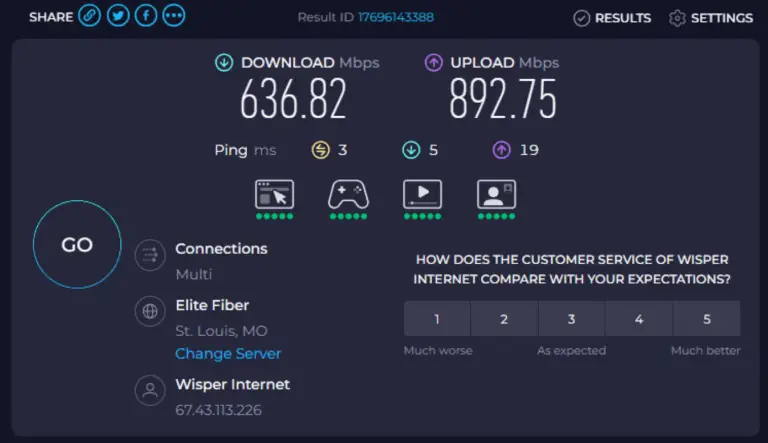
How to Perform a Speed Test
WHAT YOU WILL NEED:
- A PC or laptop connected to your home internet
- A web browser
STEPS:
- Prepare for the Test
Limit internet usage on all devices while running the test. Streaming, downloads, or other activity may affect the results. - Navigate to a speed test website
Open an internet browser, such as Google Chrome or Microsoft Bing. Go to www.speedtest.net (preferred) or www.fast.com. - Start the test
On speedtest.com net, click the “Go” button to begin. On fast.com, the test starts automatically. - Wait for the test to complete
The test usually runs for about 30 seconds. Avoid using your internet during this time to ensure accurate results. - View Your Results
Once the test finished, your download and upload speeds will be displayed on the screen.
NOTES & TIPS
- For best accuracy, run the test from a device that is connected via Ethernet if possible.
- You can also perform a speed test using the Wisper home app.
- Repeat the test at different times of day to get a better idea of your average speeds.
You’ve successfully run a speed test and can now see your internet speed!
How to Power Cycle a Calix Router
WHAT YOU WILL NEED:
- A Calix router
- Access to the router’s power cord
STEPS:
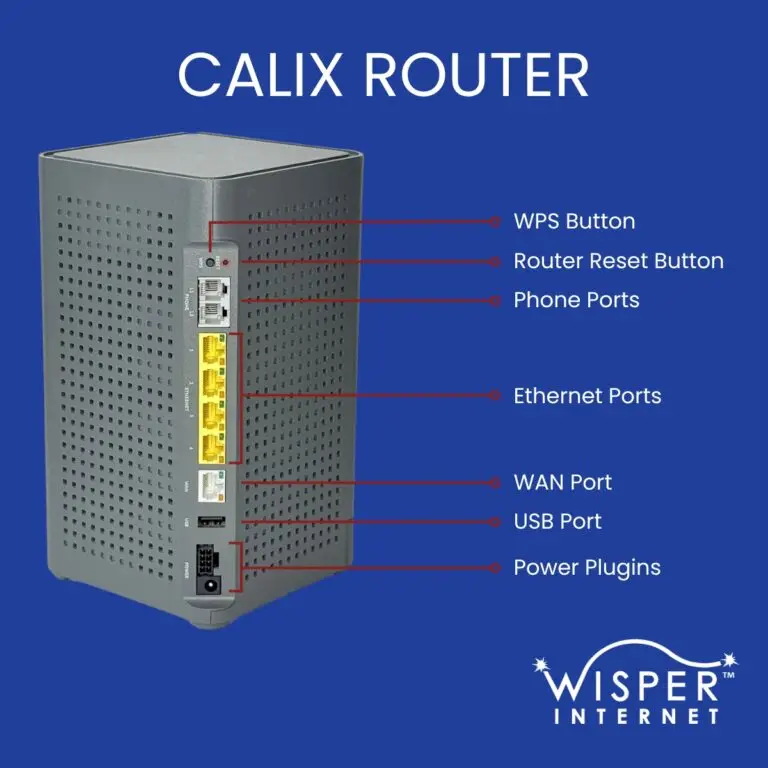
- Locate the power cord
Find the thin black power cord with a round barrel connector at the bottom of the router. - Unplug the router
Carefully unplug the power cord from the router. Leave it unplugged for 1 minute. - Plug the router back in
After one minute, reconnect the power cord tot he router. - Wait for the router to reboot
Observe the router’s indicator light. Yellow means the router is rebooting. Red indicates an internet problem. Blue or Green means the router is connected properly. - Complete
Once the indicator light shows the router is connected (blue or green), the power cycle is complete.
NOTES & TIPS
- Make sure the router remains on a stable surface while unplugging and plugging it back in.
- Do not unplug other cables or devices during this process.
- Power cycling can resolve minor connectivity issues and refresh the router’s system.
You’ve successfully power cycled your Calix router!
How to Power Cycle a POE (Power over Ethernet)
WHAT YOU WILL NEED:
- A POE device
Access to the POE’s power cord and connected Ethernet cables
STEPS:
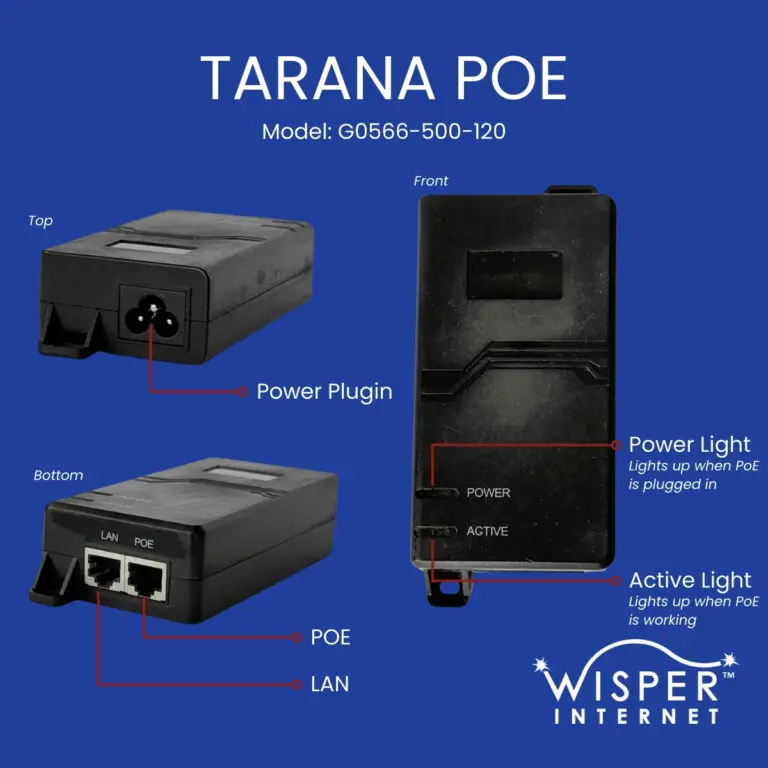
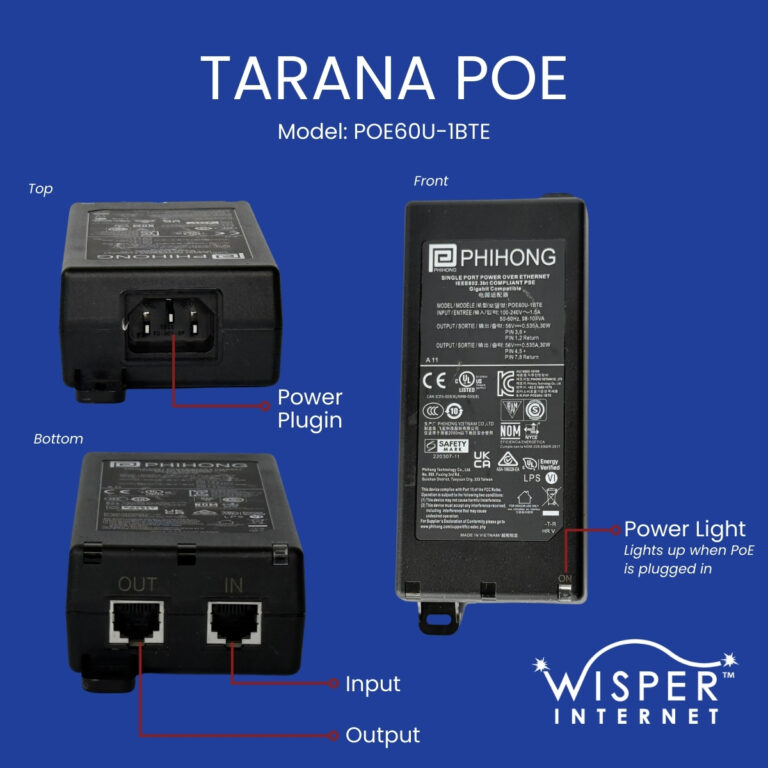
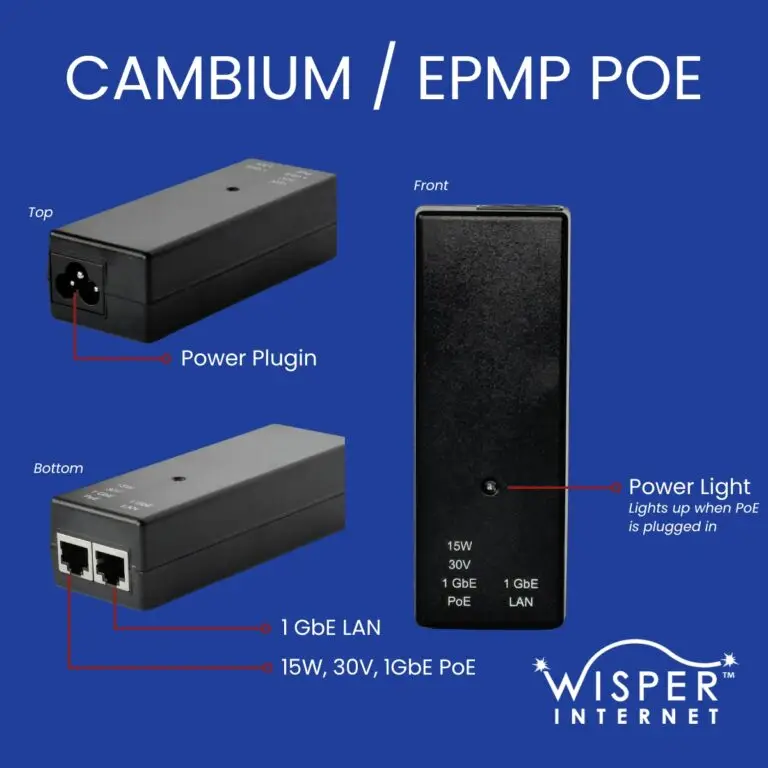
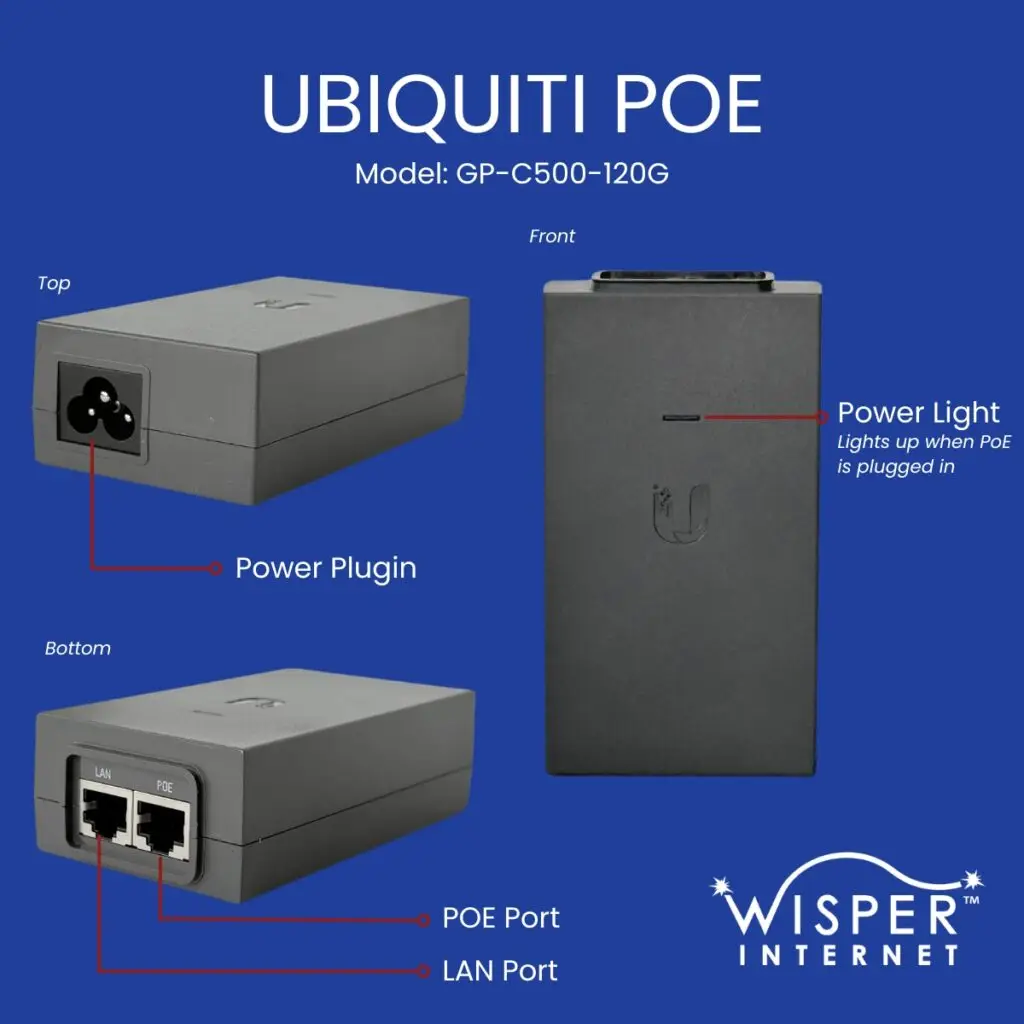
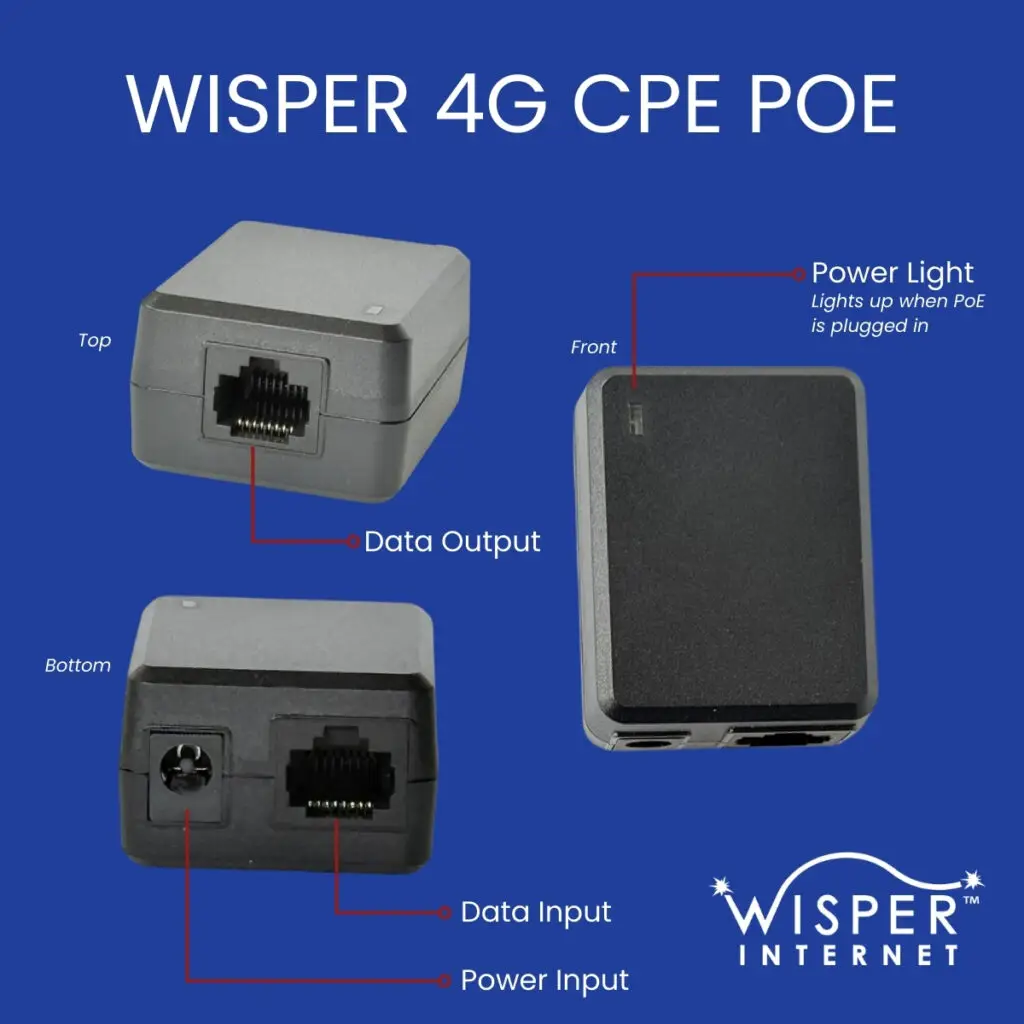
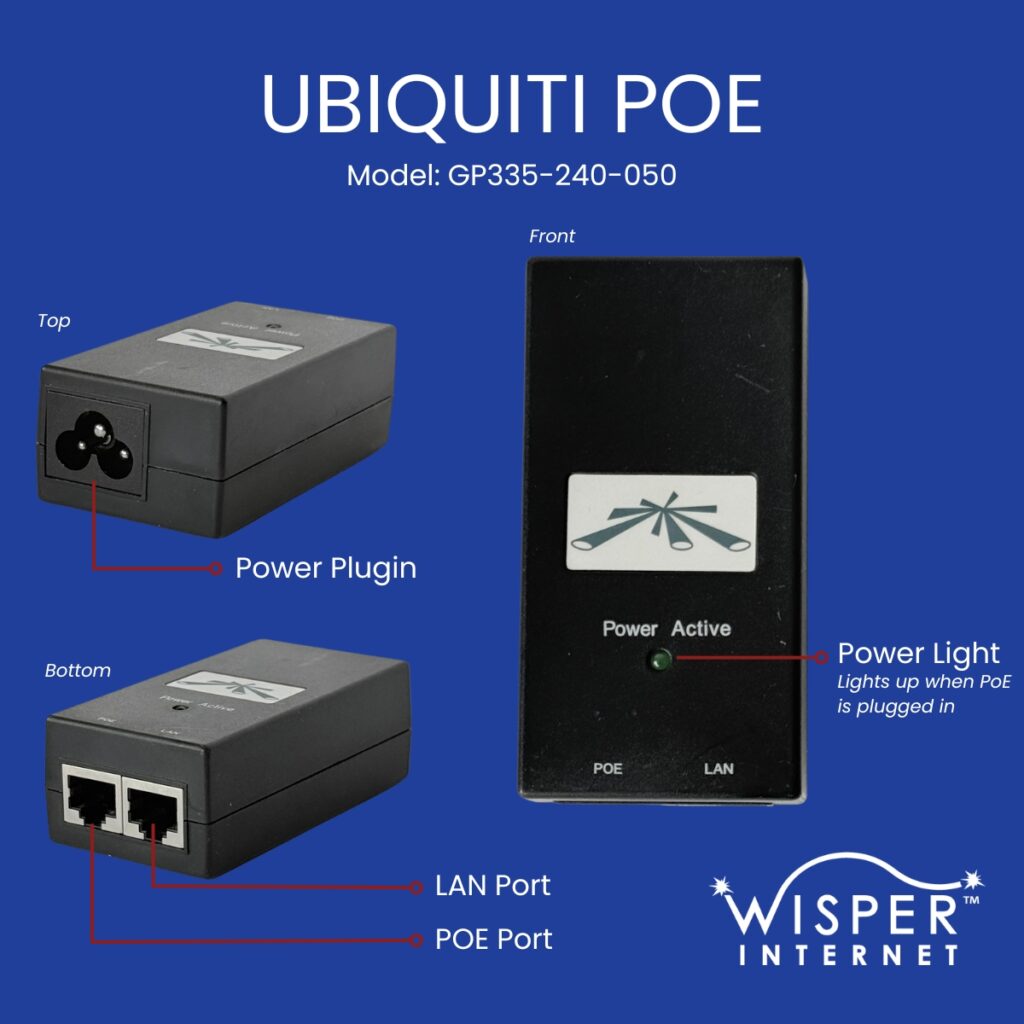
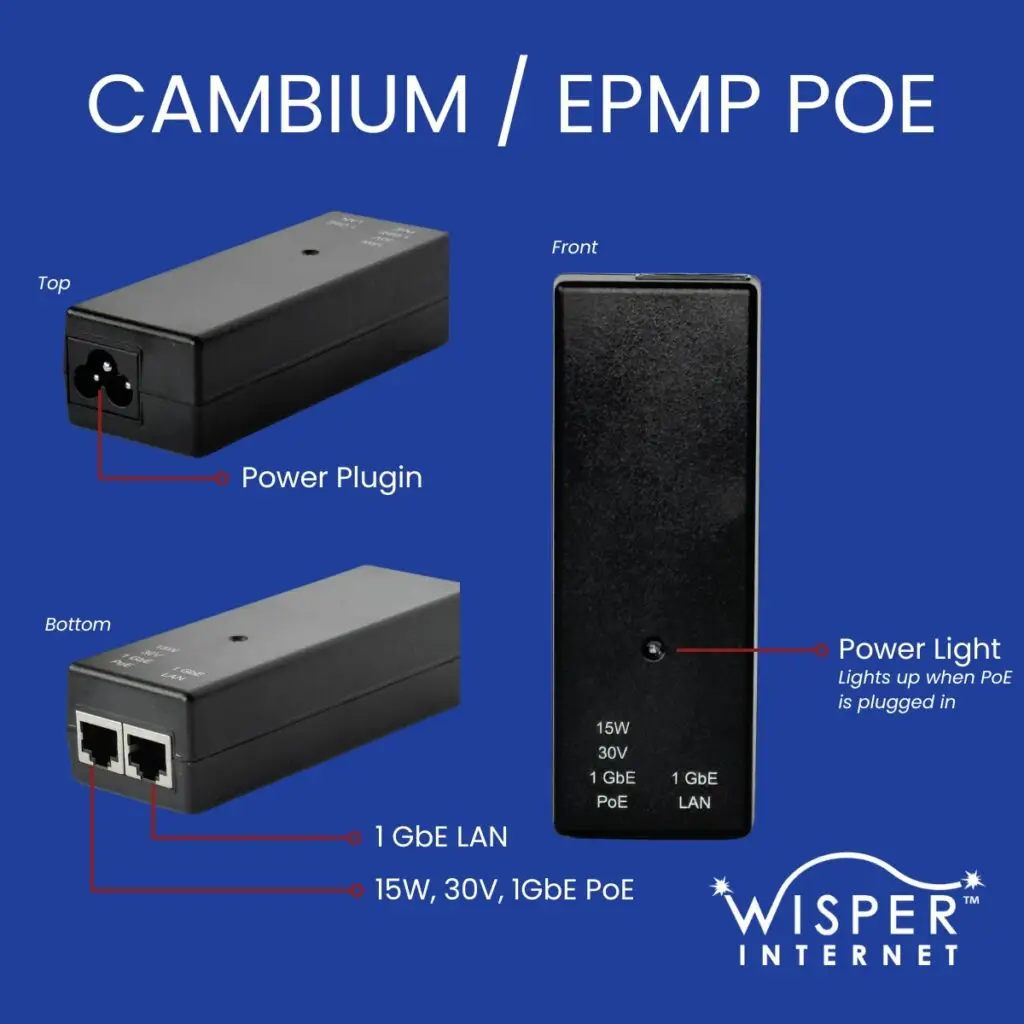
- Identify the POE ports
Locate the two Ethernet ports on the POE. LAN or Data connects to your router. POE or Data + Power connects to the outdoor equipment. - Verify Connections
Ensure both Ethernet cables are properly connected, and check the other end of the POE device for the wall power cord. - Unplug the POE
Carefully unplug the power cord from the wall. Leave the POE unplugged for approximately 2 minutes. - Plug the POE back in
Reconnect the power cord to the wall outlet. - Wait for the POE and equipment to reboot
Allow about 5 minutes for the POE and connected outdoor equipment to reboot and reconnect to the network. - Complete
After the reboot period, your POE has been successfully power cycled.
NOTES & TIPS
- Make sure the POE remains on a stable surface while unplugging and plugging it back in.
- Do not disconnect any Ethernet cables unless necessary.
- Power cycling can help resolve connectivity issues and establish a fresh network connection.
You’ve successfully power cycled your POE!
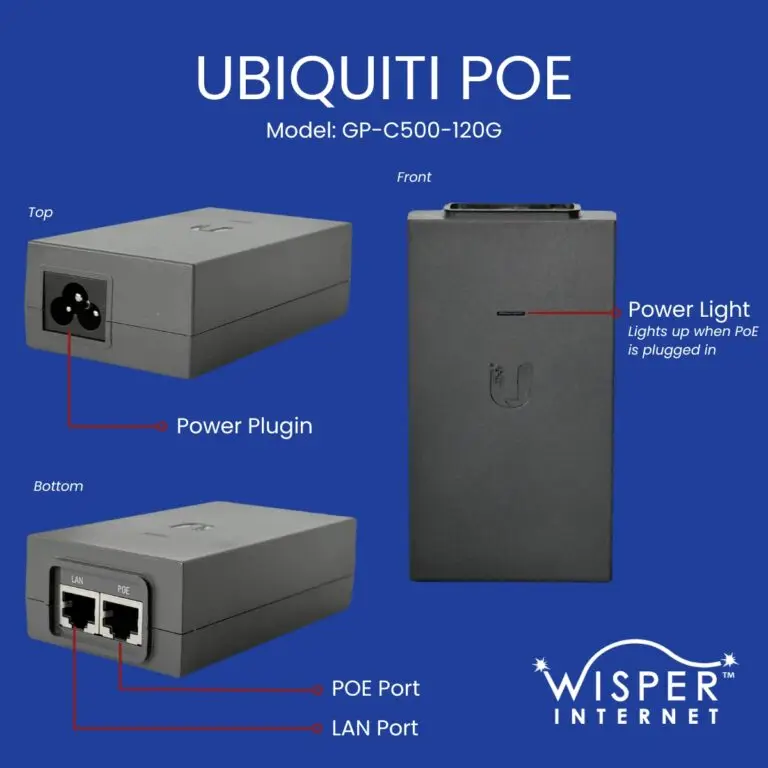
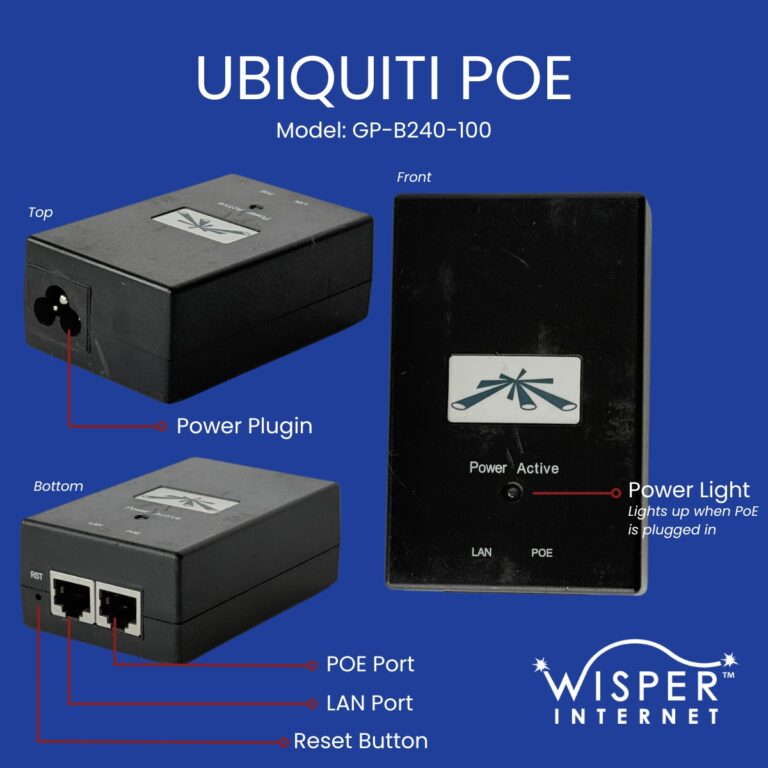
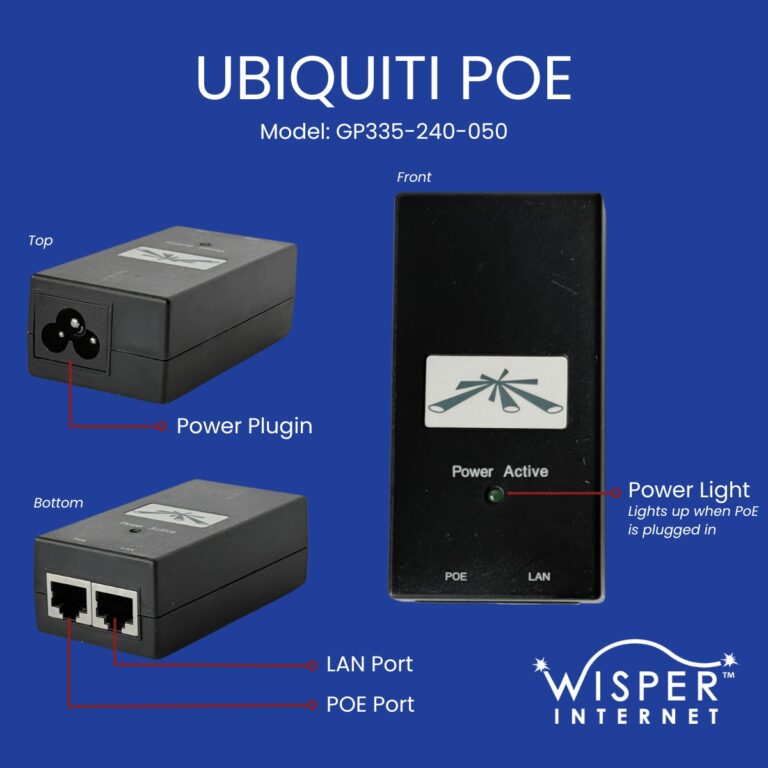
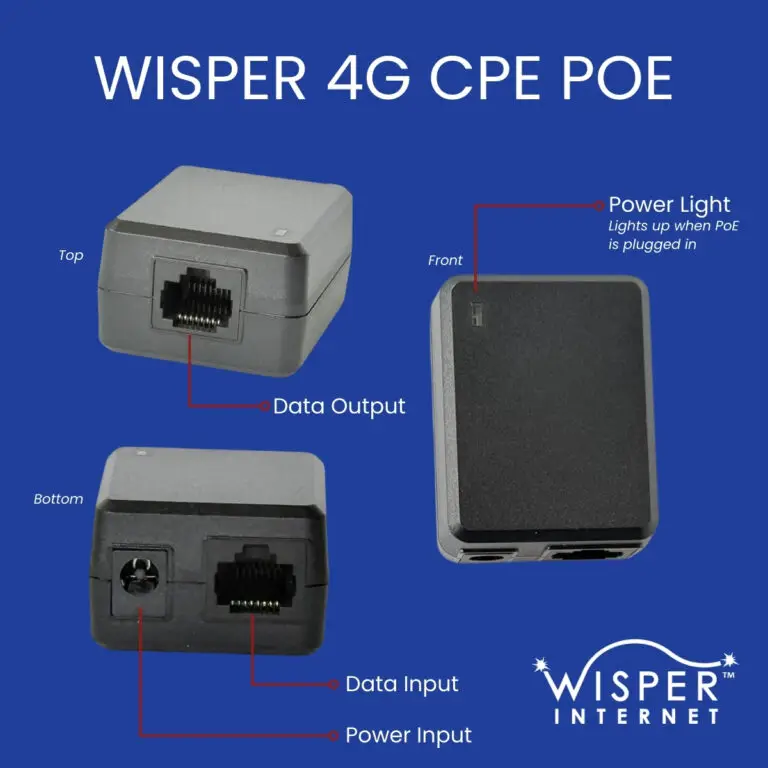
How to Bypass a Calix Router
WHAT YOU WILL NEED:
- A device with a wired Ethernet port (laptop, desktop PC, etc.)
- Access to the router and the Power‑over‑Ethernet (PoE) or modem the router connects to
STEPS:
- Locate the router and WAN cable
Find your router and look at the back. Identify the WAN port – the port with the cable that runs back to the PoE/modem. There should be a cable plugged into it. - Prepare your bypass device
Make sure the laptop/desktop you’ll use is powered on and ready. Keep it nearby so you can quickly access its Ethernet port. - Remove the WAN cable from the router
Carefully unplug the Ethernet cable from the router’s WAN port. Leave the router and PoE powered on unless your Support Agent tells you otherwise. - Connect the cable to your bypass device
Plug the end of that same Ethernet cable into the Ethernet port on your laptop/desktop (the bypass device). Confirm the device is powered on and plugged in. - Verify internet connectivity
On the bypass device, open a web page (for example your provider’s home page) or run a speed test to confirm you have internet access. - Finish testing and reinstall the router
When testing is complete, unplug the Ethernet cable from the bypass device and plug it back into the router WAN port exactly as it was before. - Confirm everything is back to normal
Check that your home Wi‑Fi and other wired devices are functioning.
NOTES & TIPS
- Do not unplug other cables or power sources unless directed by support.
- If the bypass device does not get internet after authorization, you may need to reboot or try a different device.
- When finished, make sure the router is reconnected exactly as before so your Wi‑Fi and network behave normally.
You’ve completed the bypass procedure — nice work!
How to Perform a 30/30/30 Reset on a Calix Router
WHAT YOU WILL NEED:
- A Calix router
- A ballpoint pen or similar object to press the reset button
- Access to the router’s power cord
STEPS:
- Prepare the Router
Hold the router so the back ports and the reset button are easily accessible. You may find it easiest to hold the router like a football, with the reset button facing you. - Press and hold the reset button
Use the ballpoint pen to press and hold the reset button. Hold it for 30 seconds while keeping a comfortable grip. - Unplug the power while holding the reset button
After the first 30 seconds, continue pressing the reset button and unplug the router’s power cord. Keep holding the reset button for another 30 seconds. - Plug the power back in while holding the reset button
Still holding the reset button, reconnect the router’s power cord. Continue holding the reset button for one final 30 seconds. After this final 30-second period, you can release the reset button. - Finish
The router should remain powered on. The 30/30/30 reset is now complete, restoring the router to its factory settings.
NOTES & TIPS
- Make sure you have a firm grip on the router so it doesn’t slip while holding the reset button.
- Timing is important: each 30-second segment must be fully completed before moving to the next step.
- After the reset, the router will reinitialize its system; it may take a few minutes to become fully operational
You’ve completed 30/30/30 reset!
How to Perform a Speed Test
Instructions
WHAT YOU WILL NEED:
- A PC or laptop connected to your home internet
- A web browser
STEPS:
- Prepare for the Test
Limit internet usage on all devices while running the test. Streaming, downloads, or other activity may affect the results. - Navigate to a speed test website
Open an internet browser, such as Google Chrome or Microsoft Bing. Go to www.speedtest.net (preferred) or www.fast.com. - Start the test
On speedtest.com net, click the “Go” button to begin. On fast.com, the test starts automatically. - Wait for the test to complete
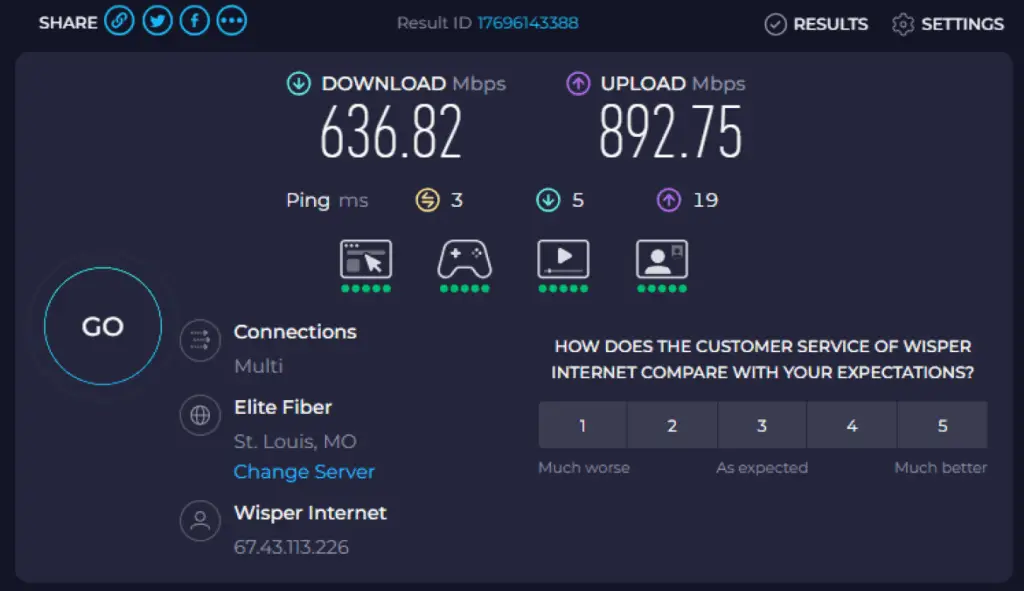
The test usually runs for about 30 seconds. Avoid using your internet during this time to ensure accurate results. - View Your Results
Once the test finished, your download and upload speeds will be displayed on the screen.
NOTES & TIPS
- For best accuracy, run the test from a device that is connected via Ethernet if possible.
- You can also perform a speed test using the Wisper home app.
- Repeat the test at different times of day to get a better idea of your average speeds.
You’ve successfully run a speed test and can now see your internet speed!
Speed Test Support Image
How to Power Cycle a Wisper Router
Instructions
WHAT YOU WILL NEED:
- A Calix router
- Access to the router’s power cord
STEPS:
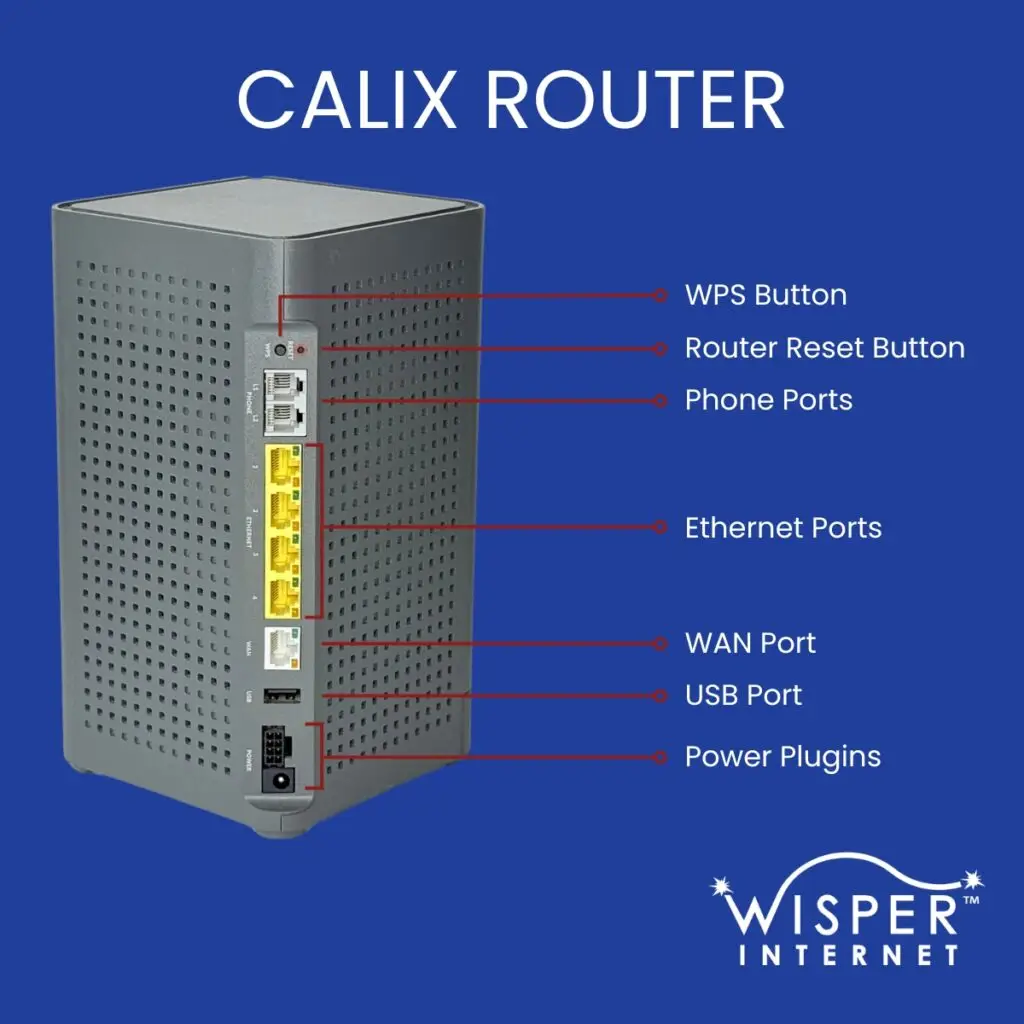
- Locate the power cord
Find the thin black power cord with a round barrel connector at the bottom of the router. - Unplug the router
Carefully unplug the power cord from the router. Leave it unplugged for 1 minute. - Plug the router back in
After one minute, reconnect the power cord tot he router. - Wait for the router to reboot
Observe the router’s indicator light. Yellow means the router is rebooting. Red indicates an internet problem. Blue or Green means the router is connected properly. - Complete
Once the indicator light shows the router is connected (blue or green), the power cycle is complete.
NOTES & TIPS
- Make sure the router remains on a stable surface while unplugging and plugging it back in.
- Do not unplug other cables or devices during this process.
- Power cycling can resolve minor connectivity issues and refresh the router’s system.
You’ve successfully power cycled your Calix router!
Wisper Router Support Image
How to Power Cycle a POE (Power over Ethernet)
Instructions
WHAT YOU WILL NEED:
- A POE device
Access to the POE’s power cord and connected Ethernet cables
STEPS:
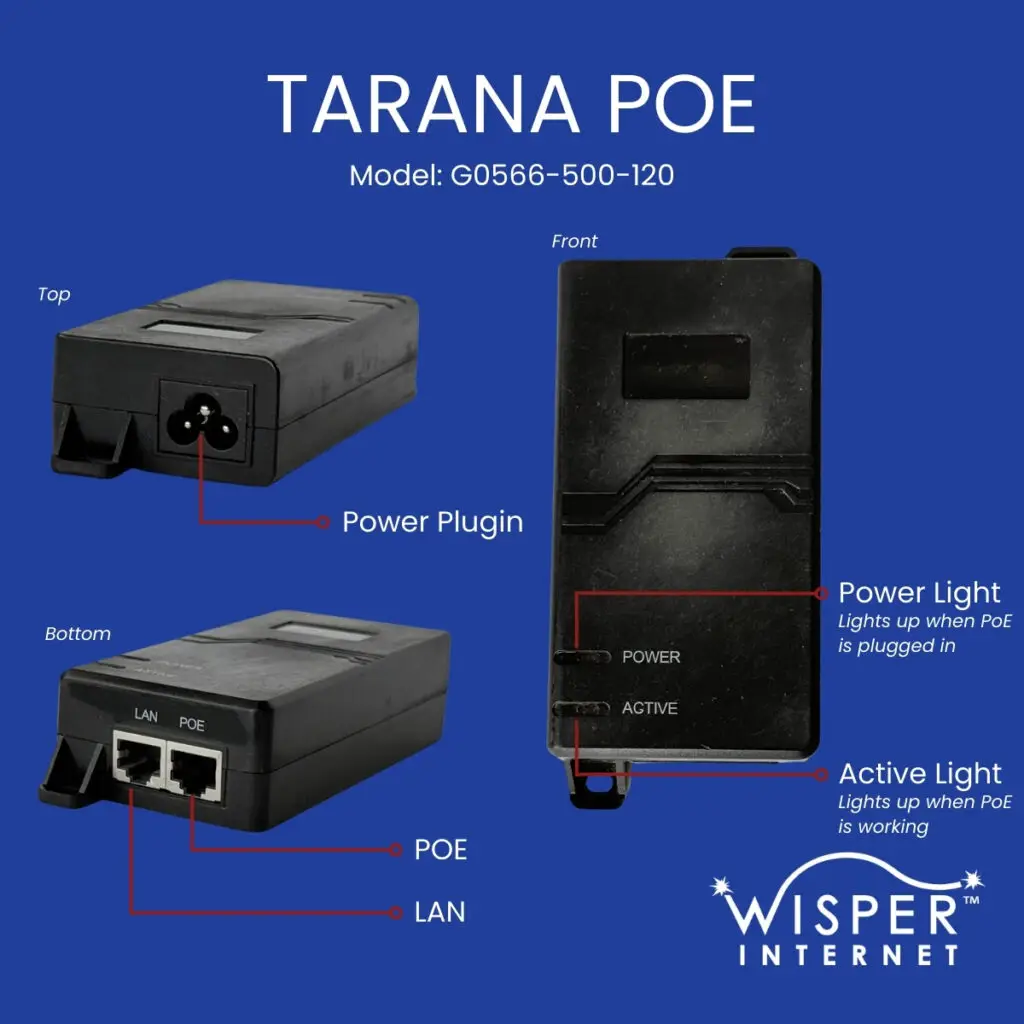
- Identify the POE ports
Locate the two Ethernet ports on the POE. LAN or Data connects to your router. POE or Data + Power connects to the outdoor equipment. - Verify Connections
Ensure both Ethernet cables are properly connected, and check the other end of the POE device for the wall power cord. - Unplug the POE
Carefully unplug the power cord from the wall. Leave the POE unplugged for approximately 2 minutes. - Plug the POE back in
Reconnect the power cord to the wall outlet. - Wait for the POE and equipment to reboot
Allow about 5 minutes for the POE and connected outdoor equipment to reboot and reconnect to the network. - Complete
After the reboot period, your POE has been successfully power cycled.
NOTES & TIPS
- Make sure the POE remains on a stable surface while unplugging and plugging it back in.
- Do not disconnect any Ethernet cables unless necessary.
- Power cycling can help resolve connectivity issues and establish a fresh network connection.
You’ve successfully power cycled your POE!
POE Support Images

How to Bypass a Wisper Router
Instructions
WHAT YOU WILL NEED:
- A device with a wired Ethernet port (laptop, desktop PC, etc.)
- Access to the router and the Power‑over‑Ethernet (PoE) or modem the router connects to
STEPS:
- Locate the router and WAN cable
Find your router and look at the back. Identify the WAN port – the port with the cable that runs back to the PoE/modem. There should be a cable plugged into it. - Prepare your bypass device
Make sure the laptop/desktop you’ll use is powered on and ready. Keep it nearby so you can quickly access its Ethernet port. - Remove the WAN cable from the router
Carefully unplug the Ethernet cable from the router’s WAN port. Leave the router and PoE powered on unless your Support Agent tells you otherwise. - Connect the cable to your bypass device
Plug the end of that same Ethernet cable into the Ethernet port on your laptop/desktop (the bypass device). Confirm the device is powered on and plugged in. - Verify internet connectivity
On the bypass device, open a web page (for example your provider’s home page) or run a speed test to confirm you have internet access. - Finish testing and reinstall the router
When testing is complete, unplug the Ethernet cable from the bypass device and plug it back into the router WAN port exactly as it was before. - Confirm everything is back to normal
Check that your home Wi‑Fi and other wired devices are functioning.
NOTES & TIPS
- Do not unplug other cables or power sources unless directed by support.
- If the bypass device does not get internet after authorization, you may need to reboot or try a different device.
- When finished, make sure the router is reconnected exactly as before so your Wi‑Fi and network behave normally.
You’ve completed the bypass procedure — nice work!
Wisper Router Support Image
Customer FAQs
Browse our most commonly asked questions about your Wisper service, billing, equipment, and more. If you don’t find what you’re looking for, we’re just a call or click away.
BILLING
What am I paying for in my service?
- Installation Fee: Wisper charges a $100 Installation Fee at the time of service.
- Equipment Fee: Wisper charges a $7.00 monthly equipment fee which includes the router installed inside the home, cabling, and outdoor wireless radio installed on your home.
- Service/Plan: Wisper charges a monthly fee for services provided. Charges are dependent on the Internet Package you have requested based on availability in your area.
Can you explain my invoice?
- Invoice Date: The date that your invoice is generated. If you have autopay, that is the date that the funds will be drafted
- Your invoice #: This will change monthly when a new invoice comes out
- Customer Account #: The number that we use to identify you as our customer
- Billing Cycle: 20-day net billing cycle
- Charges: Plan, dates, and the total cost due
- Description: Shows your plan as well as the dates that the invoice is covering
Total Charges: Charges for that invoice - Please Pay: The date that we must receive payment
- Balance Due: This is the total amount due
Can I freeze my account?
Yes, you can freeze your account. Please see our account freeze guidelines below.
- Establish Deadline
- Account must be current and on Wisper Autopay
- All applicable credits and balances are to be settled and made before the start of the freeze period
- Customer balance MUST be $0 to avoid late fees and suspension of the account
- The freeze applies ONLY to the next bill, NOT current. The current billing period will not be prorated
- Equipment Disposition: Wisper ISP retains the right to recover client equipment during the term of the freeze
- Customers will pay a $10 monthly fee each month that the freeze is active
- An email agreement is needed
If you need to freeze your account, please call 800-765-7772 to speak with Billing.
How do I request down-time credit?
To request credit for down-time, send an email to billing@wisperisp.com. Wisper customers have sixty (60) days from the invoice date to dispute any charges.
INTERNET SERVICE
Am I getting the speeds I am paying for?
We offer “up-to” speeds. If you are paying for the 25Mbps package, you will get as close to 25Mbps as possible. However, if you have Non-Line-of-Sight equipment because you have trees and obstructions between you and the tower, your speeds will be lower. Otherwise, if you have clear line-of-sight to the tower, you should get the maximum speed. When running a speed test, your results will be measured in Mbps. When downloading files, you will see your speed measured in bytes (MB/s), not bits (Mbps).
What is your usage policy?
You can read the full policy here. While our Internet plans allow you to download an unlimited amount of data, there are laws against downloading certain things, including copyright-infringed works. When we get a DMCA complaint linked to your account, we are required by law to notify you. The first 2 “strikes” are free, and then it’s $10 per DMCA complaint up to 12, which is when we have to ask you to find another ISP.
How does wireless internet work?
Many aren’t familiar with exactly how a wireless internet service provider (WISP) is different from other internet providers. We bring service to you by mounting a radio (CPE) on the outside of your home or business and point it to a nearby Wisper tower. The tower and the radio securely send and receive your Internet content. From the outside radio, we run a cable into your home and install a wireless router. This allows you to connect your wired and wireless devices to the internet, so everyone in your home can get online. We also secure (encrypt) the wireless router so others can’t steal your Internet.
How does wireless compare to Satellite, DSL, Cable and Fiber-Optics?
Unlike satellite, which can lose signal during heavy rain, weather does not typically affect the wireless signal. There are some exceptions to this, such as, severe storms and ice. Lightning can sometimes damage tower equipment. Wisper monitors the network 24/7, so tower techs know when there is an outage and can work quickly to restore service at all hours. Ice buildup can affect a specific type of antenna called a Yagi. This is the long, skinny, pronged antenna that is only used in areas with no line-of-sight to the tower.
Does weather affect Wisper Internet?
- Satellite: Most satellites are floating in orbit between 100 and 24,000 miles away. That’s how far your data is traveling – so latency (the delay between the signal being sent and reaching its destination) is going to be much higher than just about any other option. By comparison, your nearest Wisper tower will be less than 5 miles from your house. Wisper latency times (i.e. 30ms) are a fraction of that of satellite (i.e. 400ms). Customers who switch from Satellite to Wisper are often amazed by the improvement in Internet speed and reliability. Unlike Satellite, the weather does not affect Wisper service.
- DSL: Only available in towns, or within a certain distance to the DSL Central Office. Usually requires a phone line, so bundling with a phone is usually required. Most DSL speeds are between 1 and 3 Mbps. Beware – the older the phone lines in your town or neighborhood, the slower and less reliable your DSL Internet connection can be. If you are looking to cancel your landline telephone and get the Internet only, or you want more speed than DSL can provide, Wisper could be your solution. Cable – It can be very fast. Cable providers rank highest on lists of companies with the worst customer service. Wisper’s speeds are comparable to cable, and customers enjoy local, friendly, and knowledgeable support.
- Fiber: It can be the fastest, but not always. Providers can vary a lot – from the speeds they offer and how much they charge, to how long it takes to repair a cut fiber line and restore an outage. It’s not available everywhere, so if you have the option to choose fiber, you might want to look into it if speed is important to you.
EQUIPMENT
I have a new router, what’s the next step?
If you received a new router from Wisper, or purchased one on your own, please contact tech support during our support weekday business hours so they can provision it for you.
What is power cycling?
When having problems with your Internet connection, the best thing to do first is power cycle both your router and your Wisper wireless equipment.
To reset your Wisper internet connection try the following steps:
- Locate your Internet Adapter (POE)
- Reboot your outside radio by unplugging this adapter from AC power
- Wait 60 seconds then put the power plug back in
- If you have a router, unplug it from the power for 60 seconds
- After 2 minutes, check your computer for Internet
- If none of these steps resolve your issue please contact Wisper for further assistance
I’m getting a new roof put on. What do I need to do?
Call Support at 800-765-7772 to schedule a paid service visit to remount your outside equipment.
HOME PHONE
How do I check my voicemail?
Dial 5001 from your home phone. Enter your PIN. If you do not know your PIN, please contact support@wisperisp.com.
When my phone rings, it doesn’t ring fully. Is this normal?
It’s not normal, but it can happen. Contact support@wisperisp.com to see if they can fix the issue.
The person on the other end sounds garbled. Can you fix this?
Your call quality should be good. If it’s not, then we will try to fix it for you. Contact support@wisperisp.com for help.
Can I make all my phones work through the phone jacks in my home?
Yes, you can have your whole house wired to work with VoIP phone service, but you will need to make one crucial change at your home. Failure to implement this change may result in damage to your equipment, which is replaced at your expense.
On the outside of your house where the phone company line comes into your home, there is a box. If you open the box on the customer access side, there is usually a phone jack with a phone cord plugged into it. You will need to unplug the phone cord and tuck it away from the jack and close the box back up. That will disconnect your house from the phone company line. Then when you hook up the box into any jack in the house, the whole house will be set up for phone service.
Does the service work with fax or home security systems?
No, it does not work with fax. Security systems which use traditional land-lines will not work with Wisper’s VoIP Phone service. There are security systems which use the Internet instead, and those are compatible with Wisper’s VoIP Phone service, since they do not require a land-line phone connection.
Account Management & Bill Pay
Online Customer Portal
View balances and services associated with your account, pay and download invoices, track internet usage, and more with Wisper’s Customer Portal. Log into your account by clicking the button below!
Don’t have access to your online portal? Visit our Customer Portal overview to learn more and get signed up!
Payment By Phone
24-HOURS PHONE PAYMENTS:
Pay at any time using our interactive voice response (IVR) phone system by calling 800-765-7772 and selecting the self-service option at billing. This service is available 24/7 for free to our customers.
SPEAK TO A REPRESENTATIVE:
If you prefer to pay by speaking directly with a member of our Billing Team, they can be reached at 800-765-7772. There is a $4.99 processing fee when paying by phone with a member of the team. Other phone conversations with the Billing Team are free of charge.
Billing Hours – Mon-Fri: 8:00am-6:00pm
Wisper Email Account Access
To check your email, begin by clicking the appropriate button below based on your location.
St. Louis & Southern Illinois
Southwest Missouri
Washington, Missouri Area
Wisper Connect
Having Wisper Internet is just the beginning. We believe internet service should come with real support—not just for your router, but for your digital life.
That’s where Wisper Connect comes in. It’s our growing library of tips, tutorials, and so much more. Connect is here to help you get the most out of your service, with articles featuring:
- Internet Safety Tips & Tricks
- Hometown Highlights
- Behind the Scenes of Wisper
- Midwest Life & Connections